Getting a manuscript back covered in edits can feel like a lot. It helps to know that Microsoft Word’s Track Changes feature is built for exactly this: it lets an editor and an author work on the same document without anything getting lost or overwritten. Every deletion, insertion, and comment is recorded, and nothing becomes permanent until it’s approved.
That works in both directions. When using Track Changes, you can see everything the editor changes, and they can see everything you change. Here’s how to read their edits, respond to them, and make your own revisions so you can build the best version of your book together.
Below is my own process for working with clients. Every editor is different, but they’ll likely follow some version of the below.
Step 1: Check your name and turn tracking on
Before you type a single word, make sure Word knows who you are. Your name is what labels your changes and comments, which is how I can tell your edits from mine.
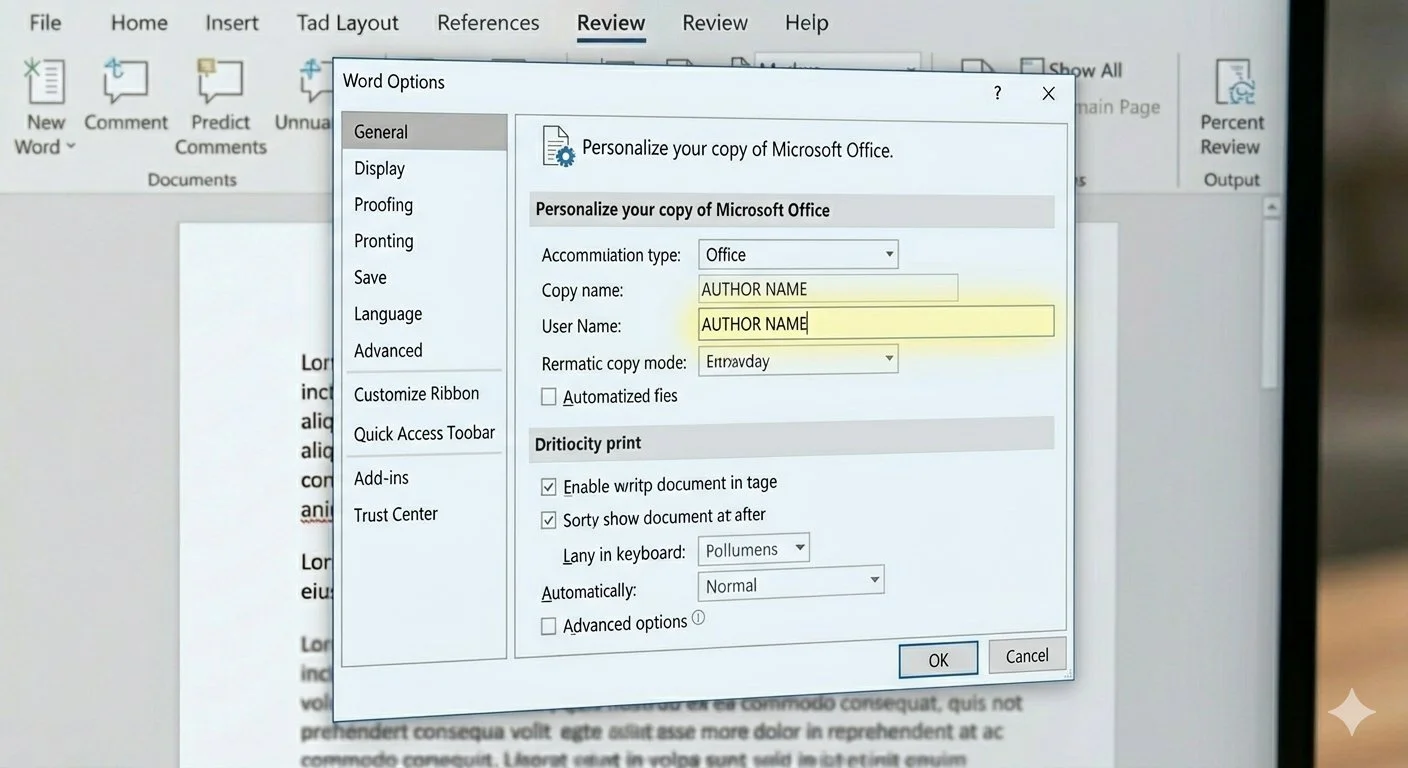
Click File > Options.
On the General tab, under Personalize your copy of Microsoft Office, enter your name in the User name box.
Then turn on tracking. You have two options:
The ribbon: Go to the Review tab and click Track Changes. If Word asks whether to track for Just Mine or For Everyone, choose For Everyone. That is the setting that makes your edits visible to me. (Just Mine is only for experimenting on your own.)
The mode switcher: In the top-right corner of the window, near the Share button, change the mode from Editing to Reviewing. This turns tracking on and keeps you from making “hard” edits by accident.
The keyboard shortcut is Ctrl + Shift + E (Command + Shift + E on a Mac), which toggles tracking on and off. Keep it on for the whole time you’re working on a draft with an editor.
Step 2: See my edits (the easy way)
The simplest way to read my edits is to switch Word to Print View (Word calls it Print Layout). In this view, my changes and comments appear in balloons in the right-hand margin, right beside the text they refer to, so you can read the page naturally without the markup crowding your sentences.
Open the View tab and click Print Layout.
Open the Review tab, click Show Markup, choose Balloons, then select Show Revisions in Balloons. (If you’d rather keep deletions inline, Show Only Comments and Formatting in Balloons also works.)
Make sure the markup menu next to it is set to All Markup (or Simple Markup if you prefer a lighter look).
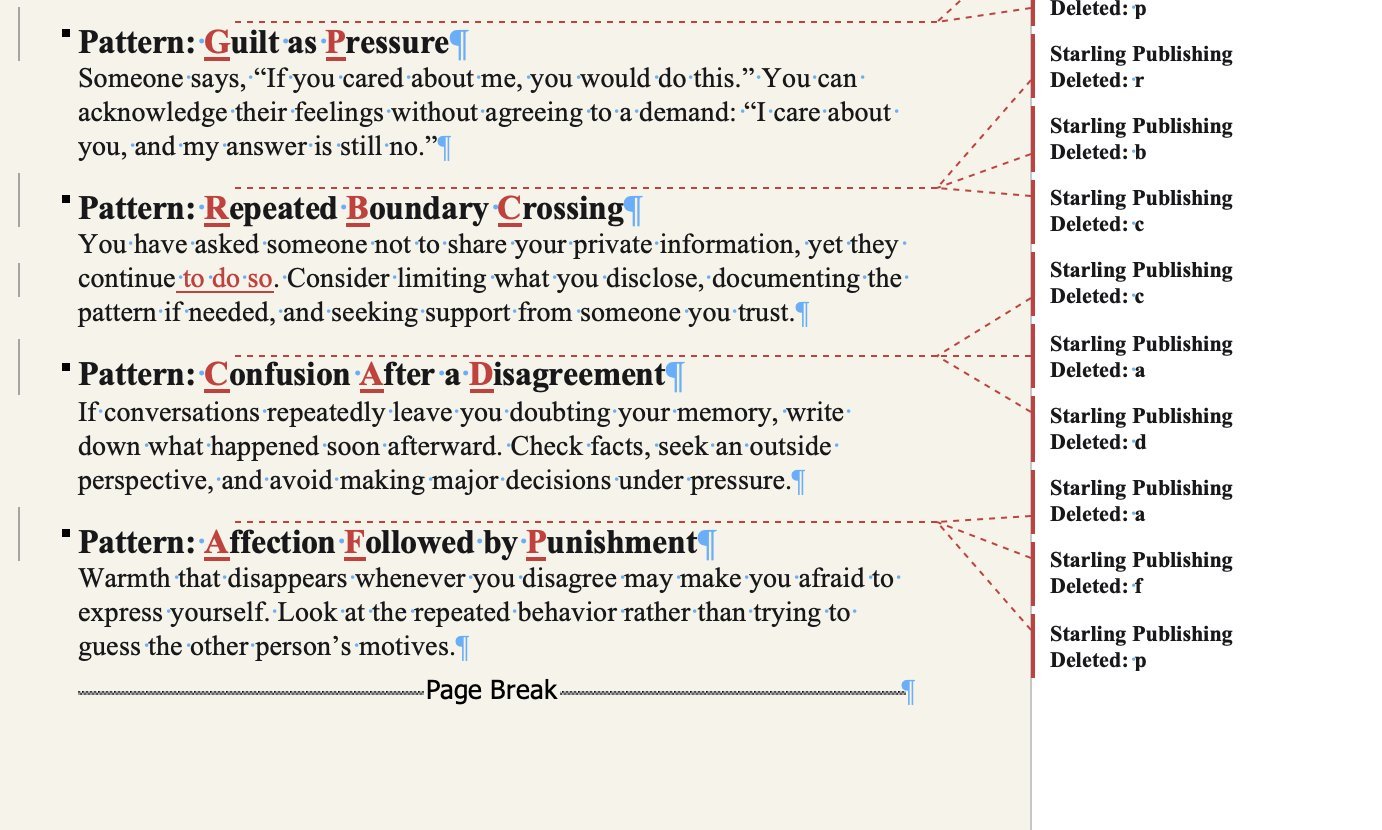
Tip: If you ever see edits running through your text instead of in the margin, check that you’re in Print Layout and not Web Layout or Draft view.
Controlling how much “ink” you see
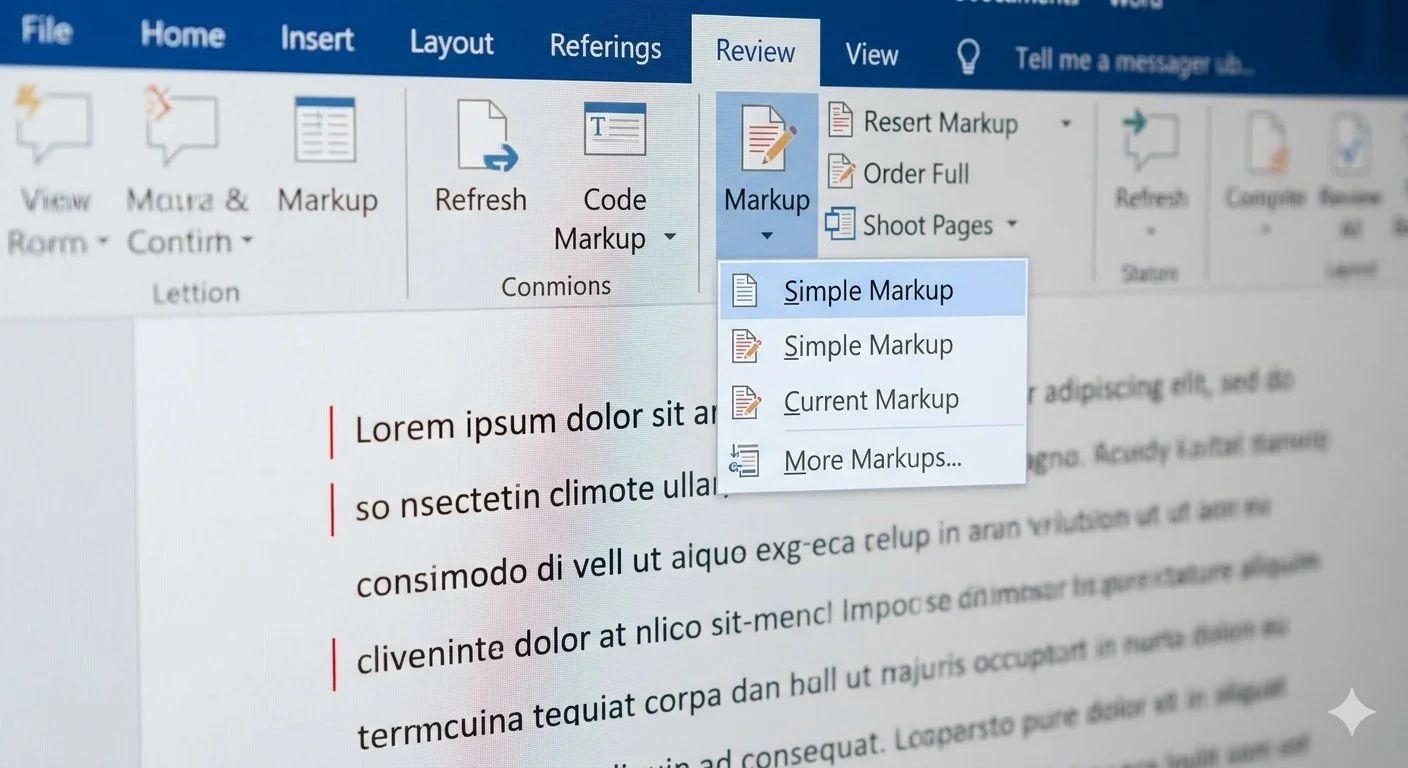
When you first open the document, it might look messy. You can control how much markup you see from the Review tab. Hiding the markup does not remove it; it only changes the view.
Simple Markup: A clean version of the text with a red vertical line in the margin where changes were made. Click the line to see the detail.
All Markup: Every deletion, insertion, and formatting change. This can be overwhelming, but it’s the most detailed and, in my opinion, the best.
No Markup: What the document would look like if you accepted every change. (The changes are still there!)
Original: The document exactly as it was before I started.
Step 3: Review my edits one at a time
Please don’t just click “Accept All.” Going through the changes is how you make sure your voice stays intact.
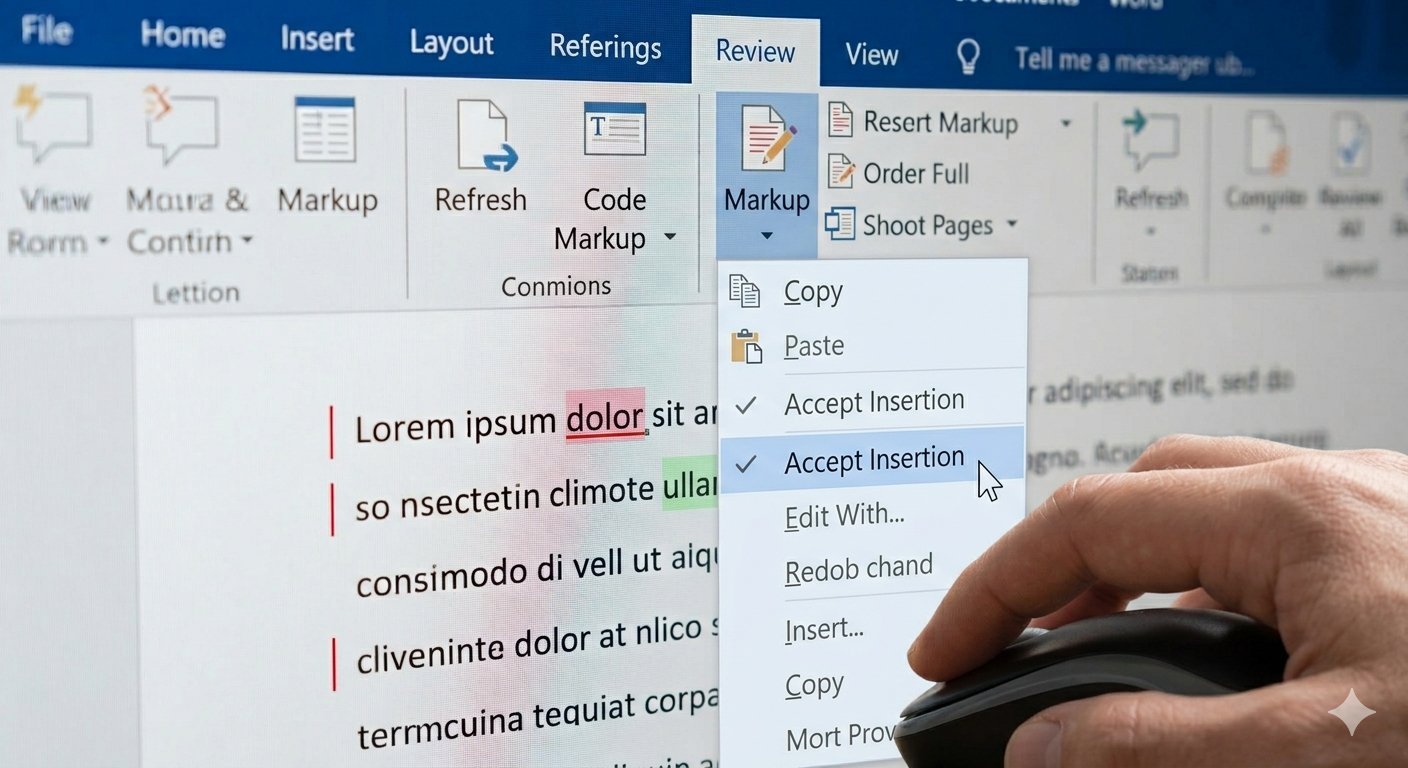
To accept: Right-click a change and select Accept Insertion/Deletion, or click the Accept button in the Review ribbon.
To reject: If you disagree with a change, right-click and select Reject Insertion/Deletion. It’s your book, and you have the final say!
The “Next” button: Use the Next arrow in the Review tab to jump to the next change so you don’t miss anything.
If you do click “Accept All” by accident, don’t panic. Word autosaves to the cloud, so click the filename at the top of the window, open Version History, and restore a version from before the bulk change.
Step 4: Talk back in the comments
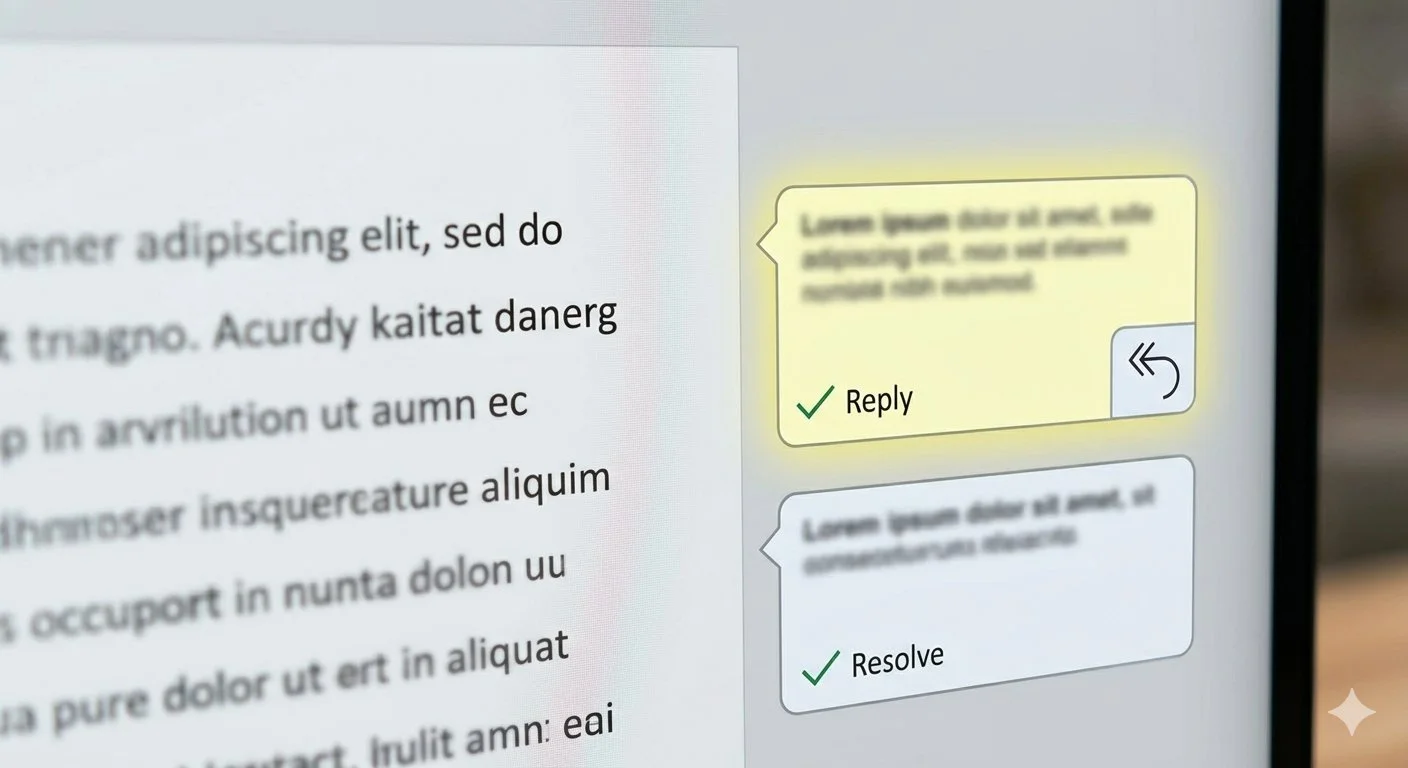
I’ll often leave bubbles in the margin with questions, suggestions, or explanations for specific edits. Comments are where the real conversation happens, so please answer them or make the change requested
Replying: If you have a question about my comment, or an answer to it, click Reply inside the bubble. Replying keeps the whole discussion in one place.
Resolving: Once you’ve addressed a comment, click Resolve. This dims the comment so you know it’s handled, but keeps the record available.
Deleting: Once you’re completely finished with a comment, you can right-click it and select Delete Comment.
When the margin gets crowded: the Reviewing Pane
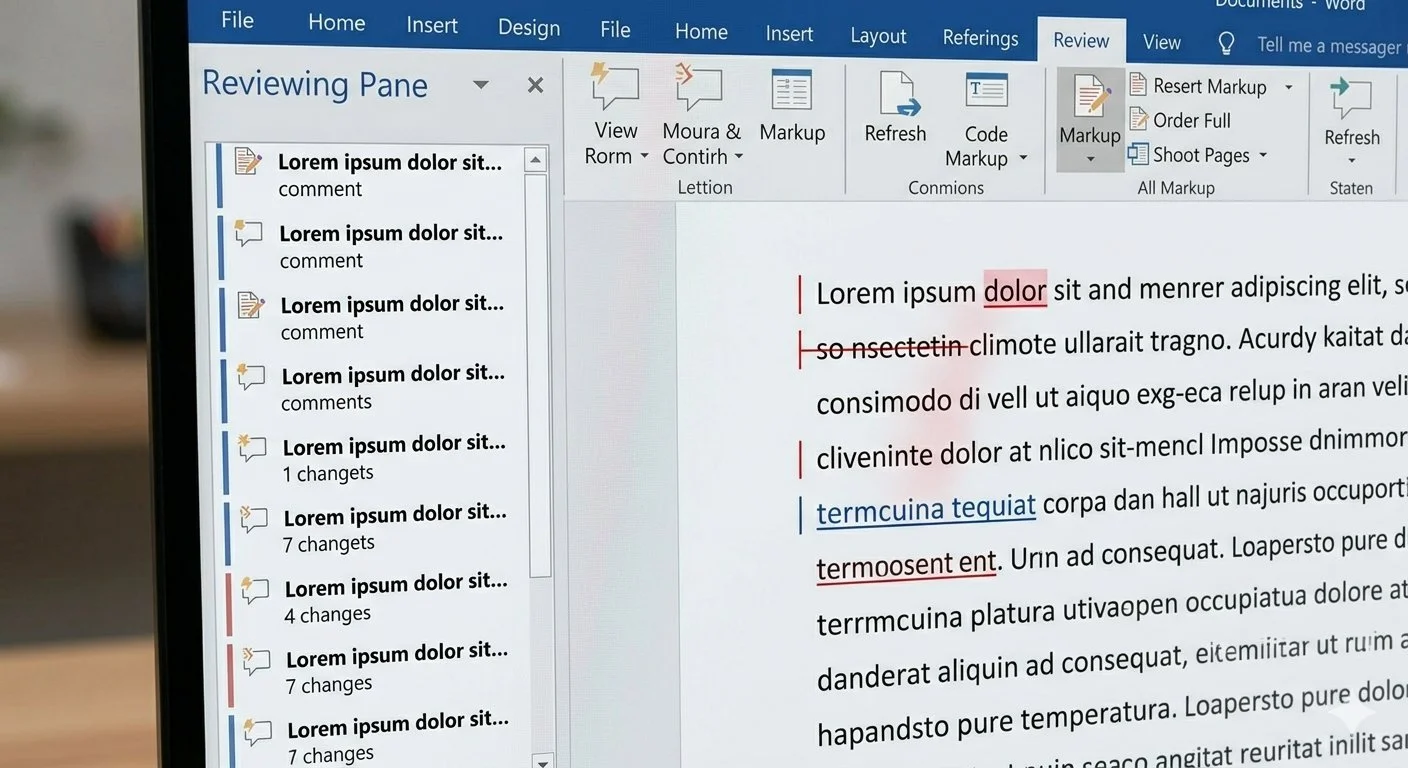
If the bubbles in the margin are too small, click Reviewing Pane (Vertical) in the Review tab. This opens a sidebar that lists every edit and comment in order, so you can be sure you haven’t missed a formatting change or a small deletion. Click any item in the pane and Word jumps straight to that spot in the text.
Step 5: Make your own edits (tracked)
Collaboration is a two-way street. Once you’ve worked through my edits, this is your chance to revise: rewrite a passage, add a scene, cut a paragraph, or answer a question I raised. A few habits make this go smoothly:
Keep Track Changes on. Type your changes directly into the document and let Word record them. That way I can see exactly what is new and review your additions without hunting for them.
Don’t edit silently. Switching tracking off and changing things (or sending a “clean” copy) means I can’t see what moved. If something needs to change, track it.
Answer in comments when you’re unsure. If you’re not ready to rewrite a passage, reply to my comment with your thinking, or leave a new comment of your own. A question from you is just as useful as a revision.
Write fresh material right in the document. New sentences and paragraphs show up as tracked insertions, so I can review them the same way you reviewed mine.
Reject what doesn’t fit. You’re never stuck with one of my suggestions. Reject it, and if you like, leave a short comment about why so I understand your intent for the next pass.
Step 6: Save and send it back
Save your file: It helps if you add your initials or “Revised” to the filename.
Do a quick check: Is Track Changes still on? Have you replied to my comments? Are your changes showing in the Reviewing Pane?
Send the revised file back to me: Once you’re done, send me the file and I’ll review your updates as soon as they land in my inbox.
Before the book goes out the door
Eventually, the two of us will agree on every change and the manuscript will be ready to share with the world, whether that means beta readers, an agent, or a designer. That is the moment to finalize the document. Hiding markup is not the same as removing it, and anyone who receives a file set to “No Markup” can switch the markup back on and see every deleted word. To finalize:
Accept or reject every remaining change, then check that the Reviewing Pane says no revisions were found.
Make sure every comment is resolved or deleted.
Turn Track Changes off before the final save, so no last-minute tweaks are recorded.
Thank you!
I know that seeing a document full of edits can be a bit overwhelming. Editors thank you for all the hard work and trust you’ve put into this process. Track Changes is just the tool, and no matter who you work with, your editor will be genuinely excited to see where you take the story next—and grateful for you for making it easy for them. Happy writing!