
Before you can publish a paperback or ebook on Amazon, you need a Kindle Direct Publishing (KDP) account. Setup covers your identity, how you get paid, and a tax questionnaire. Here’s the full process, step by step.
Step 1: Sign up for Kindle Direct Publishing
Go to kdp.amazon.com.
On the KDP homepage, click “Join KDP.” If you already have an account, you’ll use the “Sign In” button from now on.
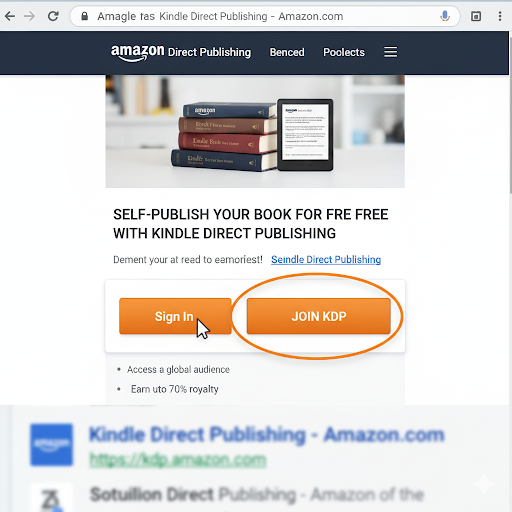
Step 2: Create your KDP account
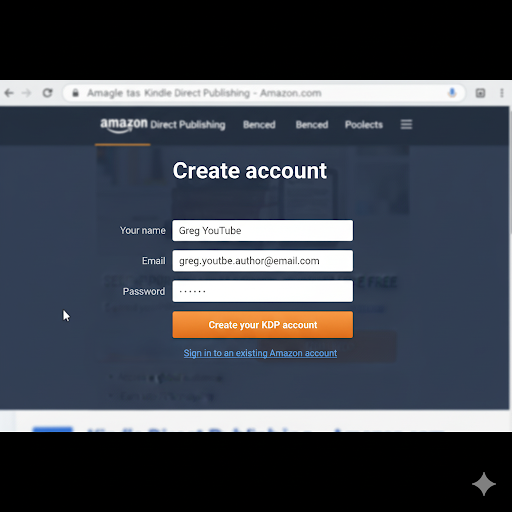
1. Enter your first and last name, the email address you want to associate with the account, and a password. You can use an email that’s already linked to your personal Amazon account or a completely different one.
2. Click “Create your KDP account.”
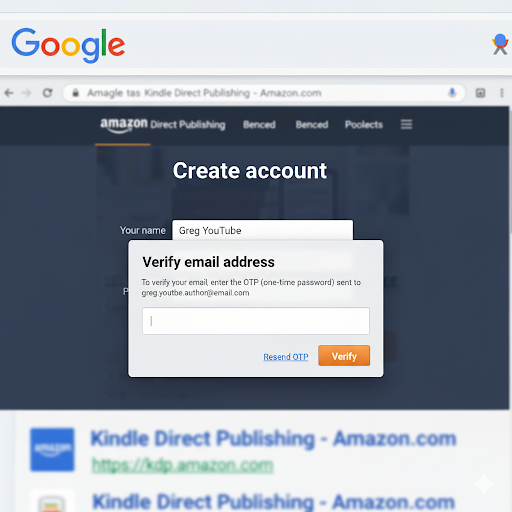
3. Amazon sends a verification code to the email address you provided. Find the code in your inbox and enter it in the required field.
4. Click “Create your Amazon account.”
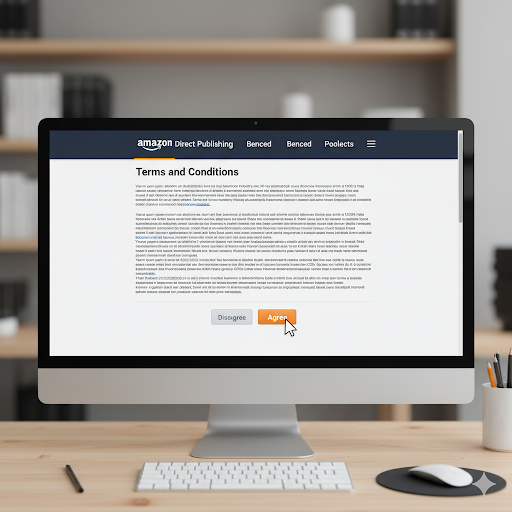
5. Read through the Amazon KDP Terms and Conditions. It’s worth at least skimming them to get familiar with the guidelines.
6. Click “Agree.”
Step 3: Complete your account information
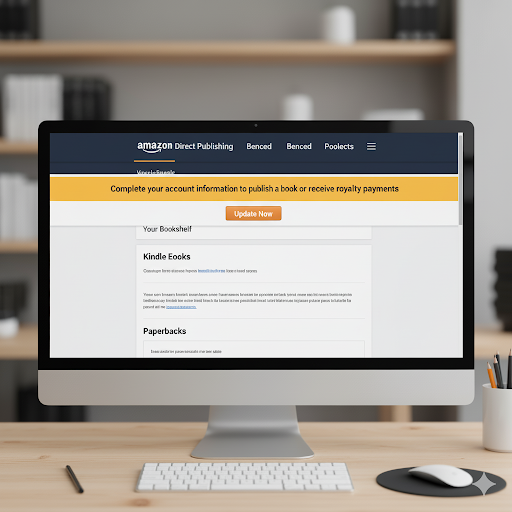
After you agree to the terms, you’ll land on your KDP dashboard. A pop-up says “Complete your account information.” Click it.
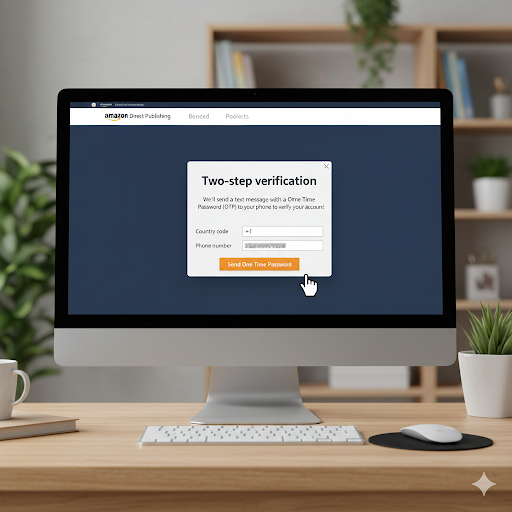
2. Amazon requires two-step verification with a phone number. Enter your phone number and click “Send one-time password.”
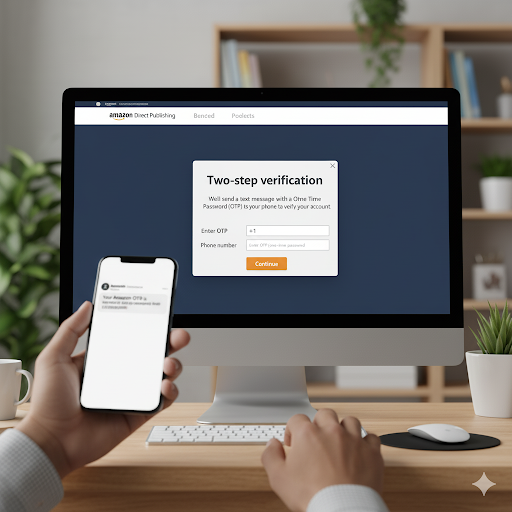
3. Enter the one-time password you receive by text message and click “Continue.”
Step 4: Enter your identity and account details
This section has two parts: Your Identity and Your Account.
Your identity
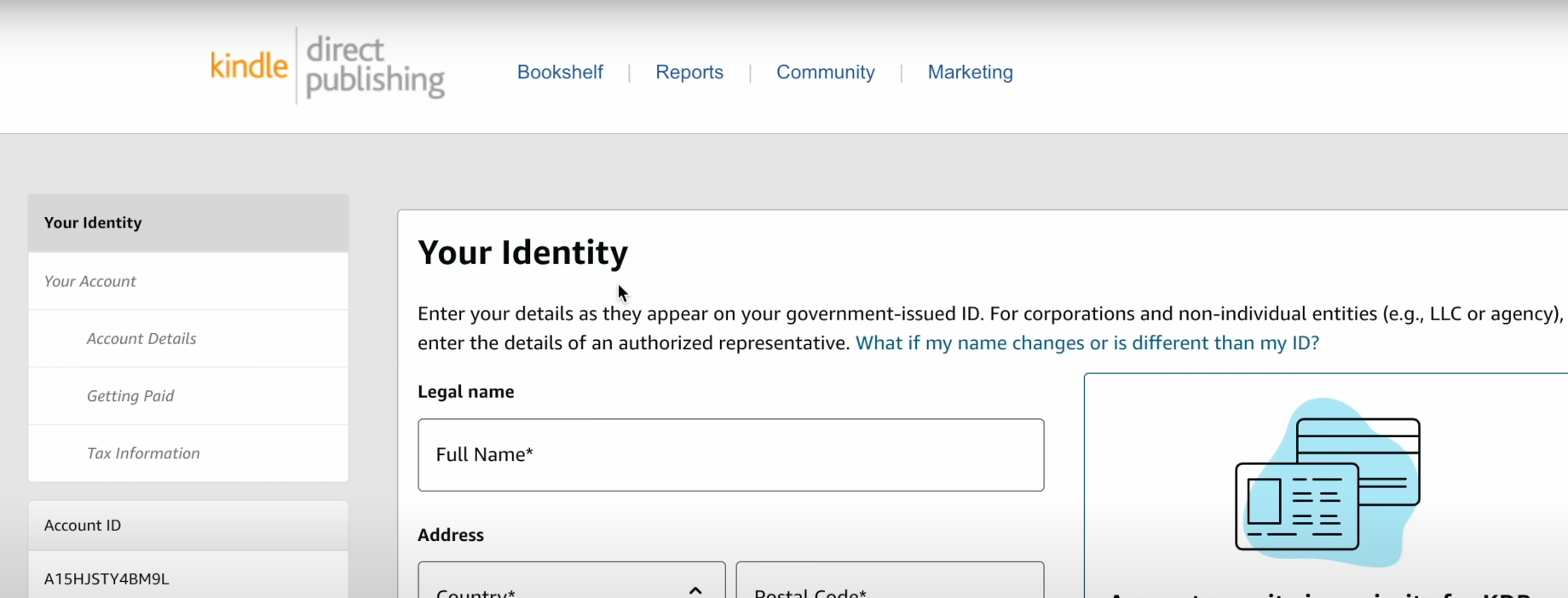
Enter your full legal name as it appears on official documents like your driver’s license or ID. Don’t use a nickname.
Select your country.
Fill in your permanent address.
Enter your date of birth and phone number.
Click “Save and continue.”
Your account
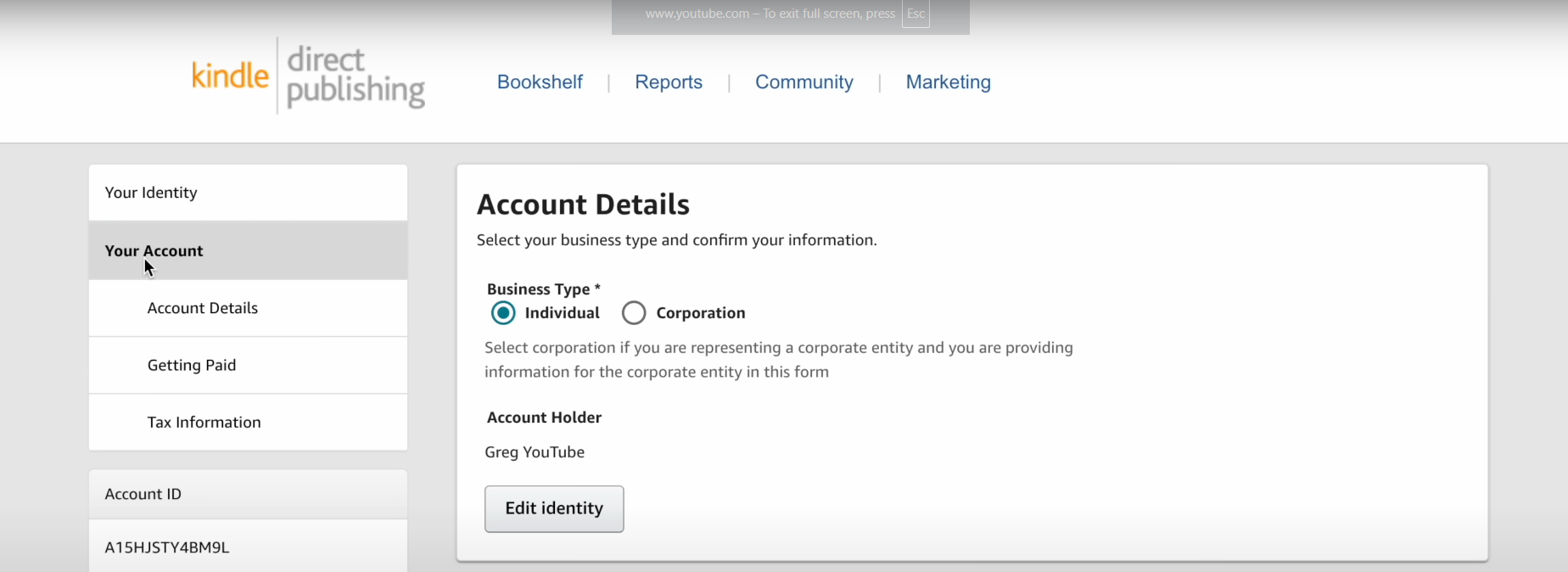
Choose your business type: Individual or Corporation.
If you’re just starting out and don’t have a registered business, select “Individual.”
If you have a business entity (like an LLC) and want the KDP account associated with it, select “Corporation” and fill in your business details.
You can have one KDP account as an individual and separate accounts for different business entities. You can also change from an Individual account to a Corporation account later if you need to.
Step 5: Set up your payment information (getting paid)
In the “Getting Paid” section, open the dropdown menu for “Where is your bank?”
Select your country or region.
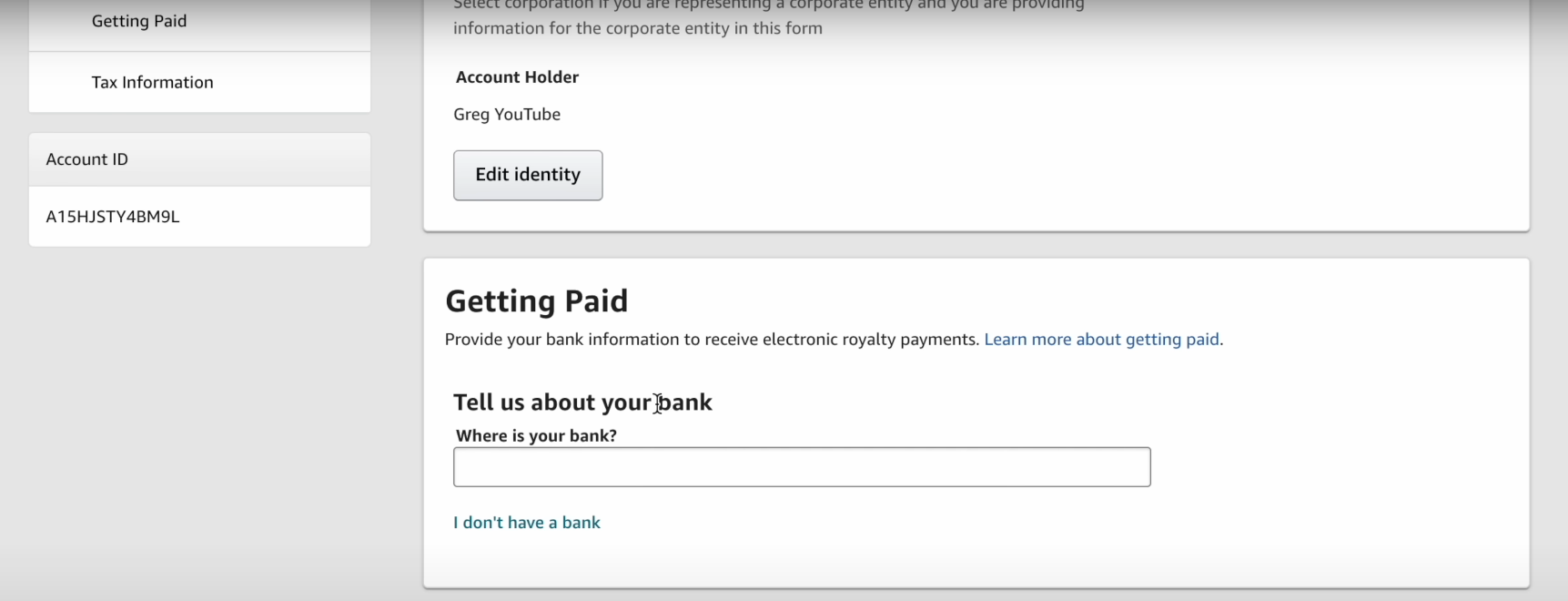
If your country is on the list
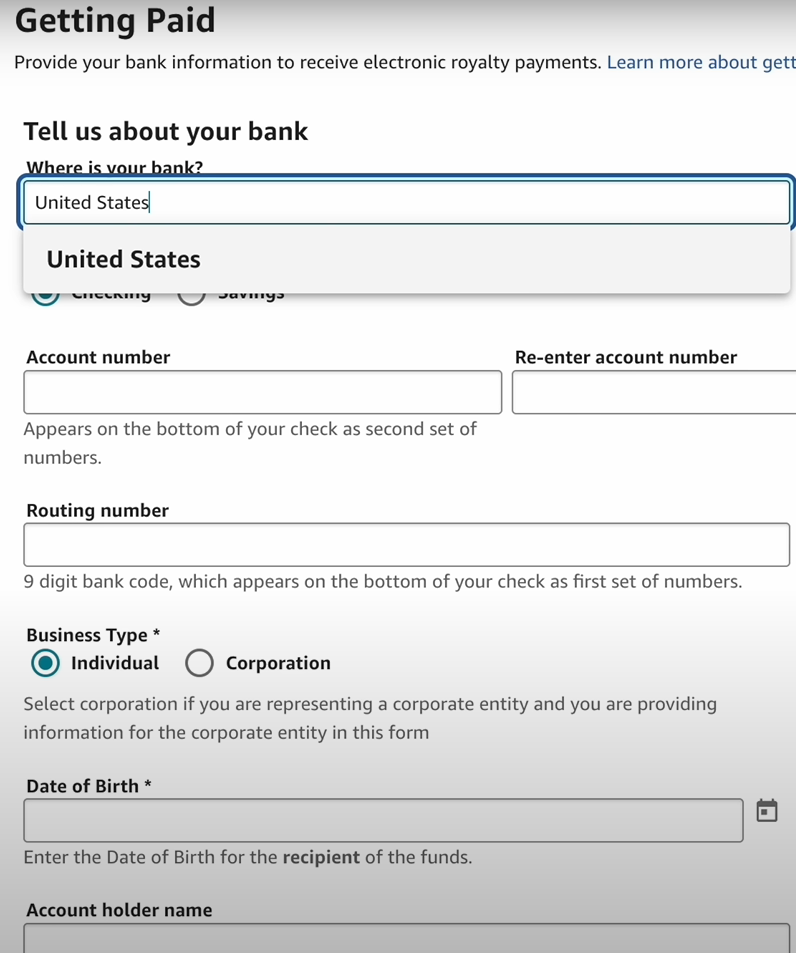
Enter your bank account information.
If you’re an individual, use your personal checking or savings account.
If you’re a business, use your business bank account for better organization.
If your country isn’t on the list
You can use a third-party service to get a U.S. bank account. Two popular options are Payoneer and Wise (formerly TransferWise). They provide a U.S. bank account and routing number. Once you have that information, go back to the KDP page, select “United States” as your bank’s location, and enter the account details the service gave you.
After you enter your bank details, click “Add.”
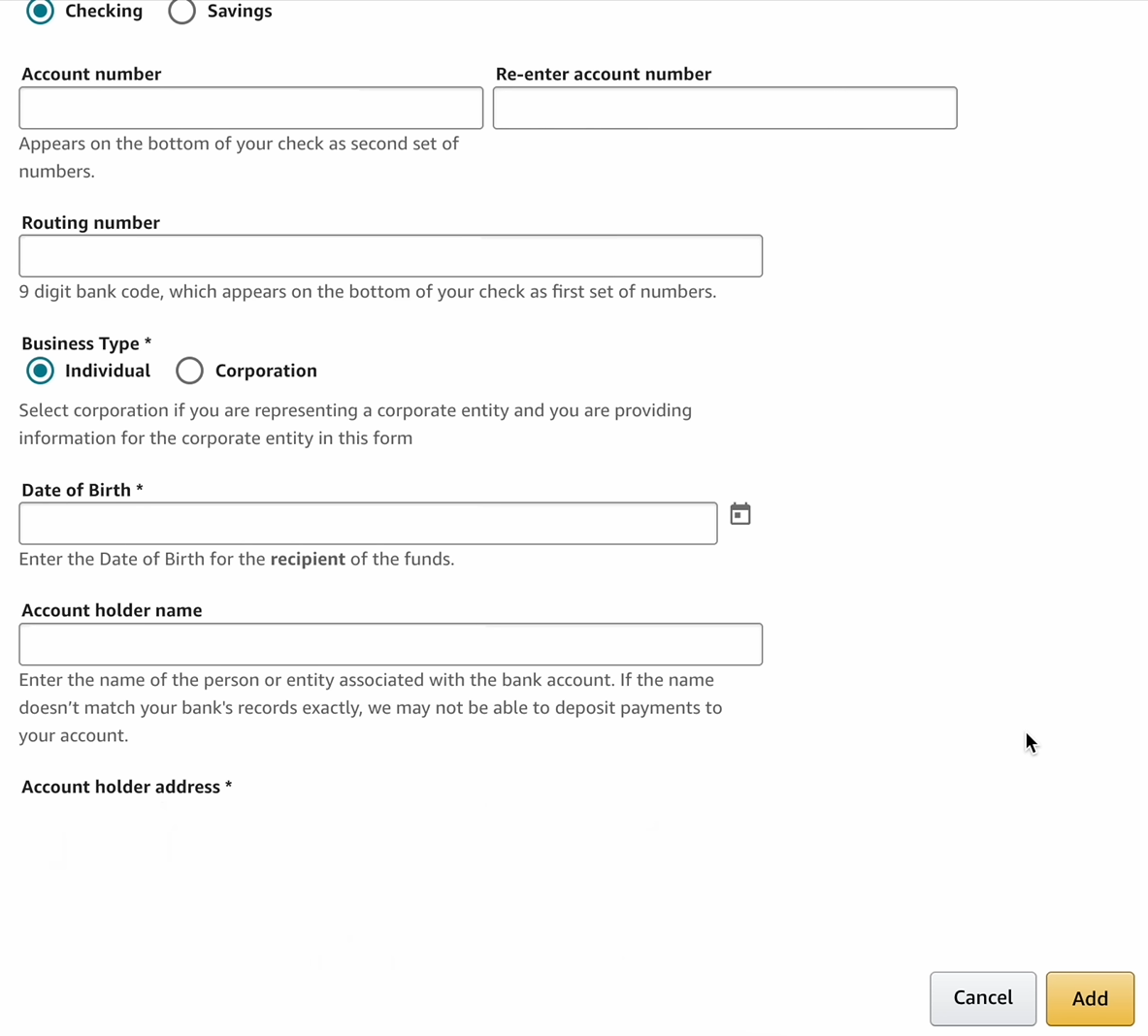
2. In the pop-up, scroll down and click “Save.” A green checkmark appears next to your bank information when it’s saved.
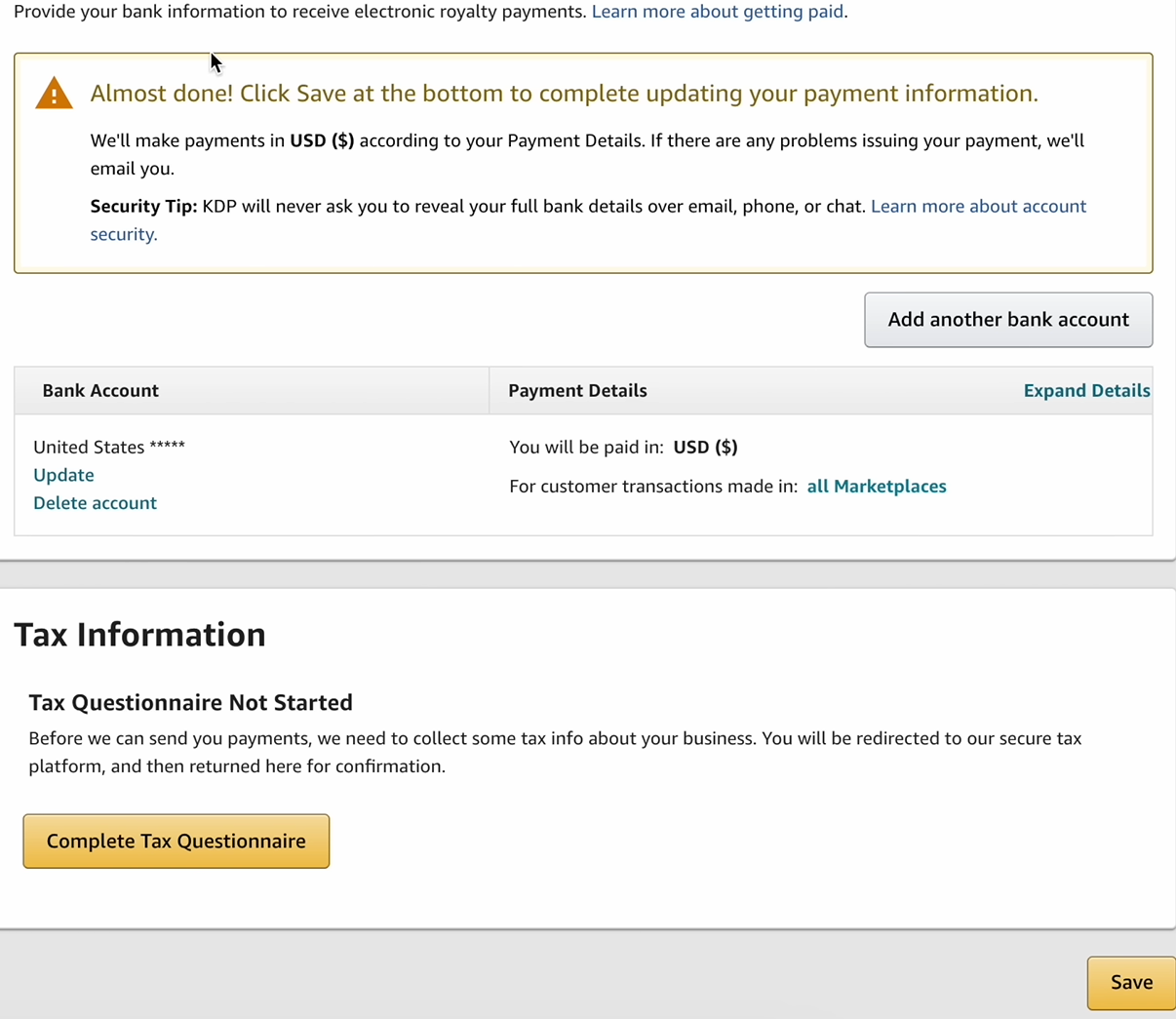
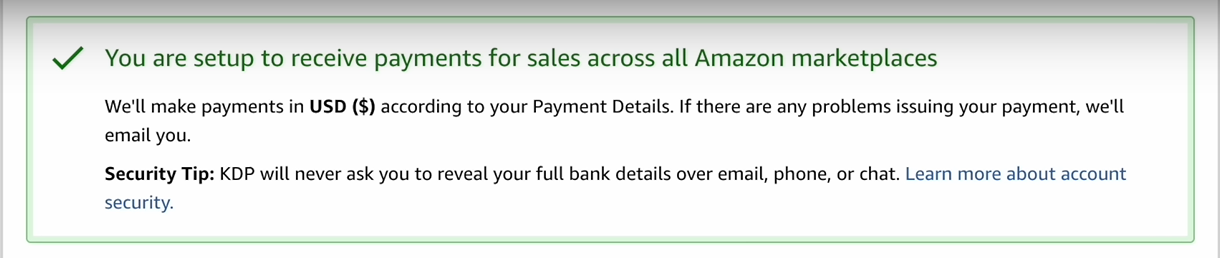
Step 6: Complete the tax questionnaire
This step lets Amazon comply with U.S. tax regulations, so don’t skip it.
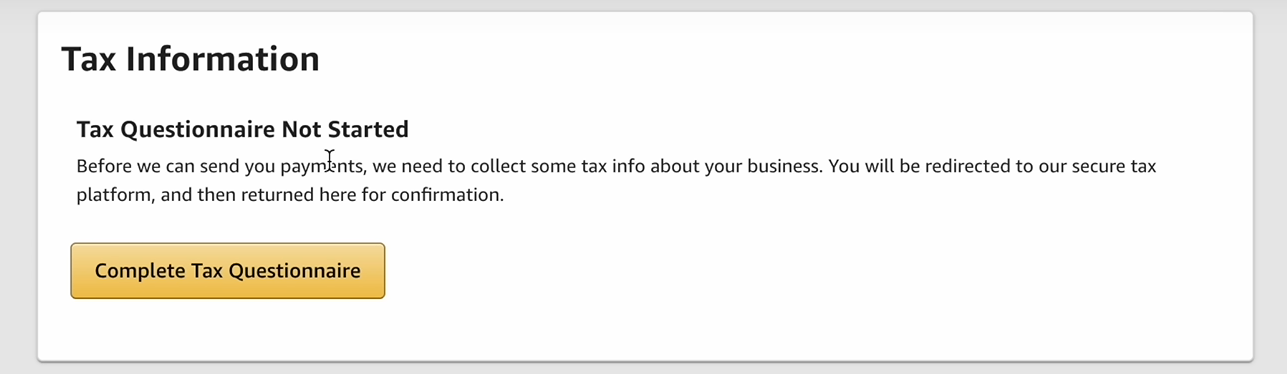
Scroll to the bottom of the page and click “Complete tax questionnaire.”
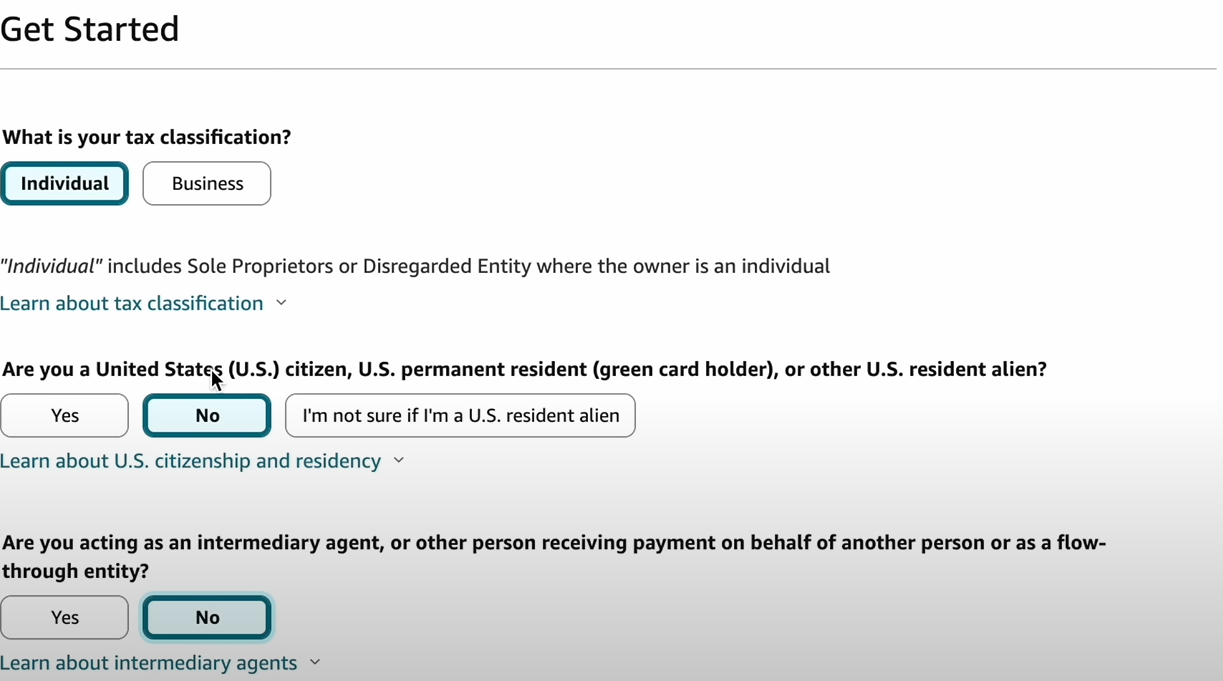
2. Answer the questions to determine your tax status: Are you an individual or a business? (This should match your choice in Step 4.) Are you a United States citizen?
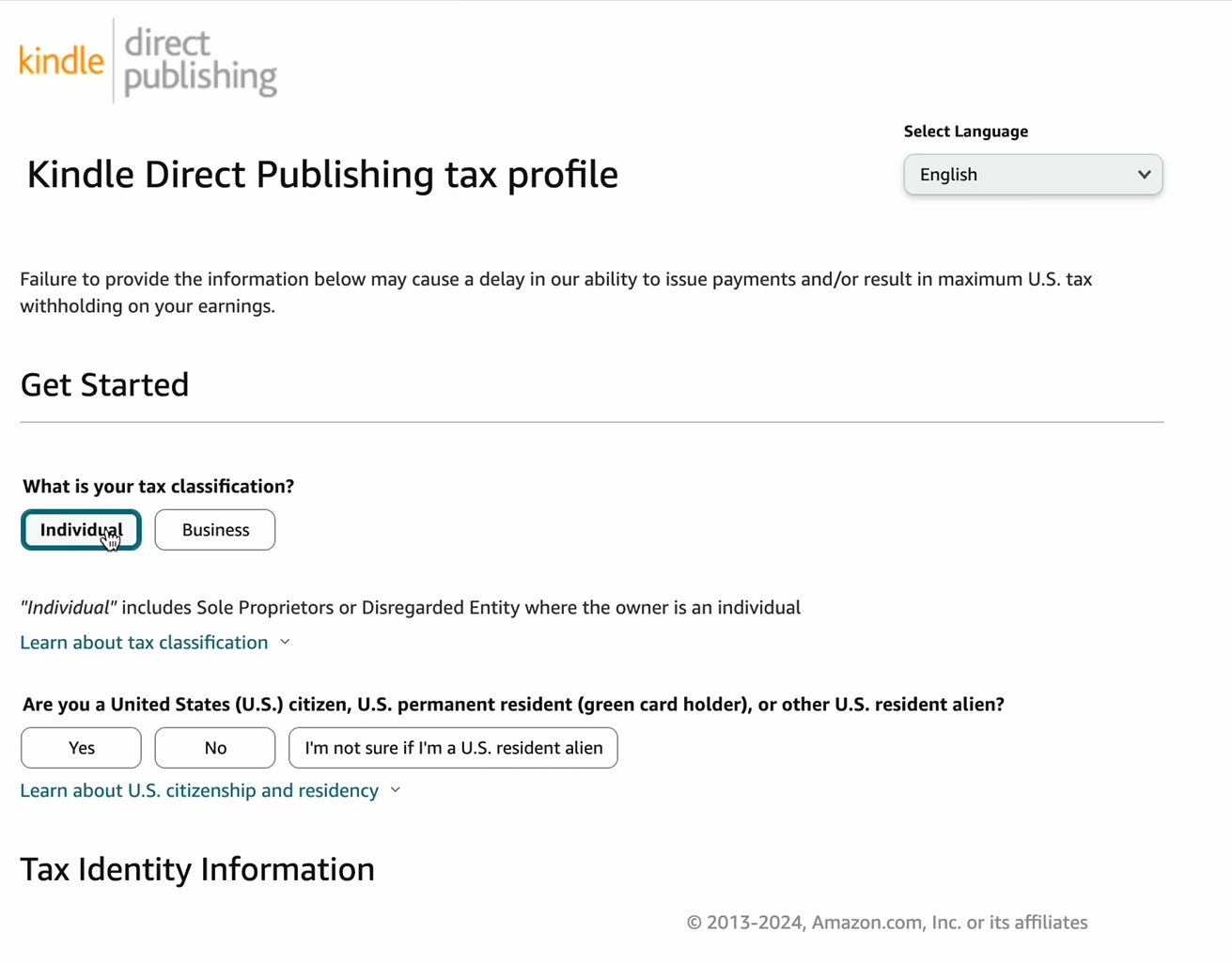
3. Based on your answers, KDP generates the right tax form for you to fill out.
U.S. citizens are asked for their full name and their Social Security Number (SSN), Individual Taxpayer Identification Number (ITIN), or Employer Identification Number (EIN).
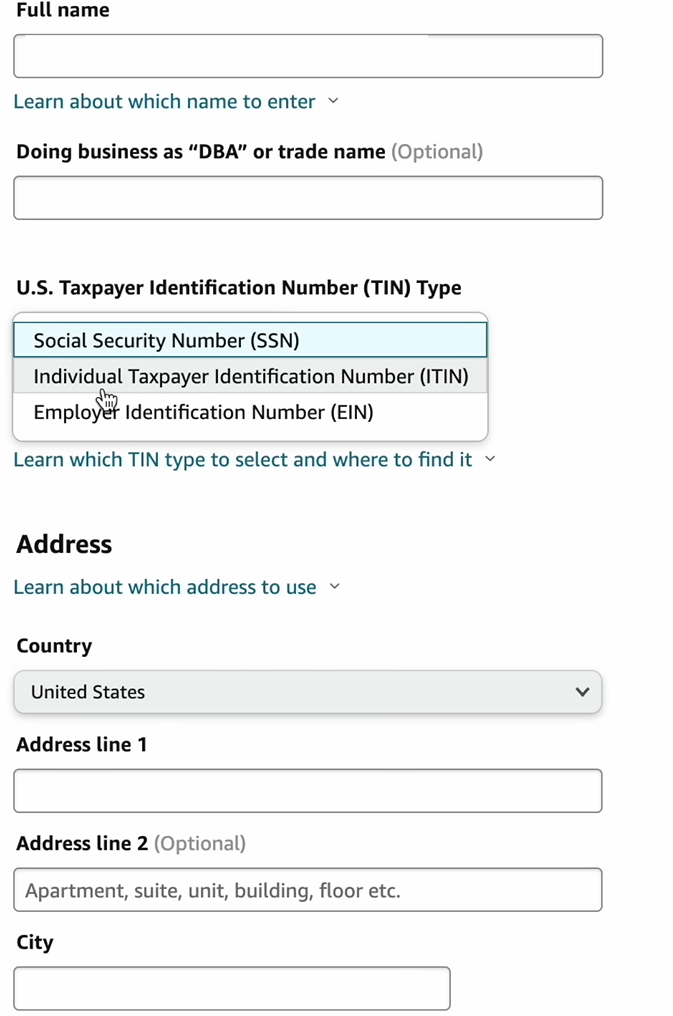
Non-U.S. citizens are asked for their country of citizenship and permanent address, plus a non-U.S. Tax Identification Number (TIN).
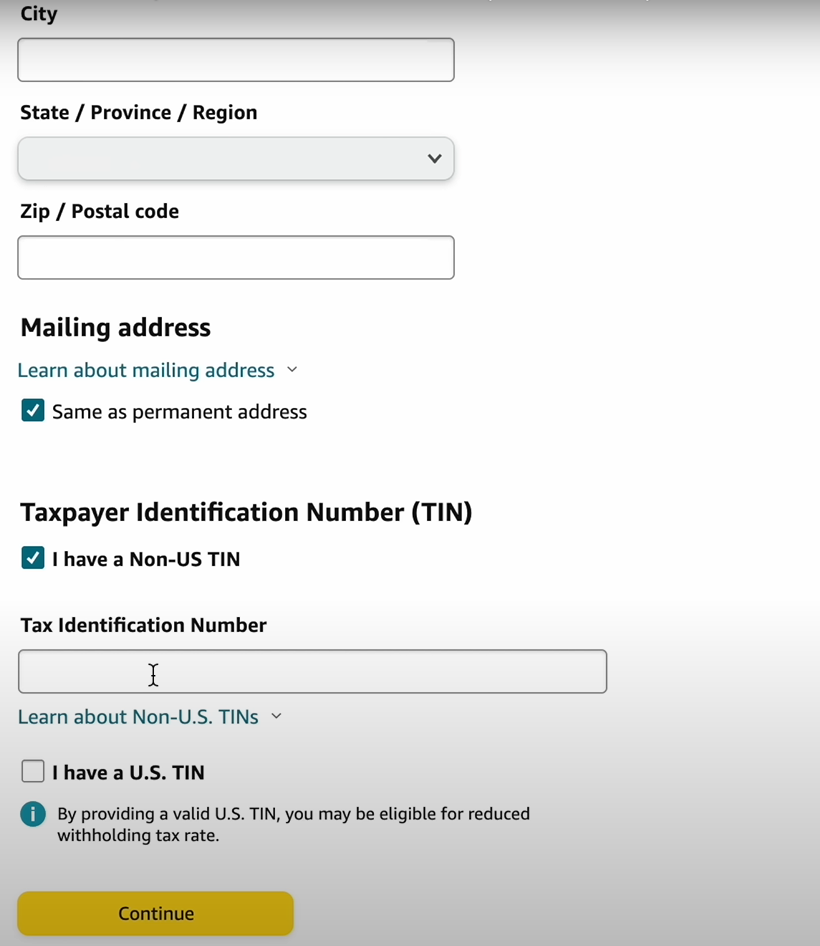
When you finish the questionnaire, your tax information status shows a green checkmark.
Handling taxes for KDP
U.S. publishers: You’re generally required to report KDP income as “other income” on your annual tax return. You may also be able to use Schedule C to write off business expenses related to your KDP business (such as a computer, software, or templates) and reduce your taxable income.
Non-U.S. publishers: You’re not required to pay U.S. taxes on your KDP profits. You’re only responsible for taxes in your own country or region.
Track what Amazon actually pays you. Keep a running total of the money Amazon deposits in your bank account from January 1 to December 31 each year. That’s the amount to report as income, not the total shown in your KDP dashboard, because payments arrive the following month.
That’s it!
You should be ready to publish on Amazon KDP. Happy publishing!